
Live streaming from a desktop app like OBS has always been a bit of a pain. In 2026, it’s time to ditch the drama. The best browser based streaming software now rivals traditional setups, minus the headaches.
Why are we still downloading a 500 MB program just to stream a webcam? Fire up OBS, and your laptop’s fans start roaring, you half expect it to lift off the desk. If you’ve been there (sweating over dropped frames and CPU warnings), you know the frustration.
We should need no hefty downloads, no cryptic settings in 2026. Just open your Chrome or Edge, and go live. The bottom line is that the “no-download” revolution is here, and it’s changing live streaming for creators everywhere.
What is Web Based Streaming Software?
Web-based streaming software is a live streaming studio that runs entirely in your web browser, with no installations required. Instead of launching a bulky app, you log into a website like OneStream Live and control your live show from there.
All the heavy lifting (video encoding, graphics rendering) happens on cloud servers rather than melting your laptop’s CPU. In other words, your browser becomes your broadcast center.
Why does this matter? For one, it levels the playing field.
Creators no longer need a high-end PC or special hardware to produce a smooth 1080p stream. A decade ago, broadcasting a decent live video meant using resource-hungry software (and praying your machine wouldn’t crash mid-stream).
Today’s online streaming software offloads that work to the cloud, so even a basic Chromebook can host a multi-camera livestream without breaking a sweat. It also means setup is insanely quick since there’s nothing to install or configure locally. Click your browser link, and you’ve got a live studio at your fingertips.
How to Stream on Chromebook? Read Blog Now!
Web-based studios have completely changed live streaming as a service rather than just software. All updates happen behind the scenes on the server side, so you always have the latest features without ever clicking “Download Update.”
And because it’s cloud-powered, you can start a stream on one device and continue it on another in a pinch. In short, browser streaming makes live broadcasting more accessible, portable, and user-friendly which is exactly why it’s becoming the future standard for going live.
Why Choose a Web Based Live Streaming Studio in 2026?
What’s the big deal about doing it all in the browser? A web-based live streaming studio comes with some serious perks for 2026.
Here are the top reasons creators are trading in their desktop apps for a cloud studio:
1. No Beefy Computer Required
A huge draw is hardware freedom. Because the cloud handles most of the processing, you don’t need a tricked-out gaming PC to stream in high quality.
Whichever device you’re using, a web studio lets you run a 1080p (even 4K) stream with no lag. Your laptop’s RAM isn’t gulping for air, and your CPU thanks you.
In fact, cloud-based platforms optimize for low-end machines, so frame drops and overheating become a thing of the past. This means you can go live from virtually any device without worrying about fan noise or system crashes.
2. Easy Guest Invitations
Ever tried getting a non-techie guest onto an OBS stream? It’s a nightmare of software installs and virtual audio cables.
With a web-based live streaming studio, bringing on guests is effortless. You just send them an invite link, they click it on Chrome or Edge, and boom, and they’re in your live show via their browser. No downloads for them, no headaches for you.
This makes interviews, panels, or collaborative streams much simpler for everyone involved. Your guest could be on a five-year-old PC or even a smartphone browser and still join with decent video and audio.
3. Multistreaming Made Simple
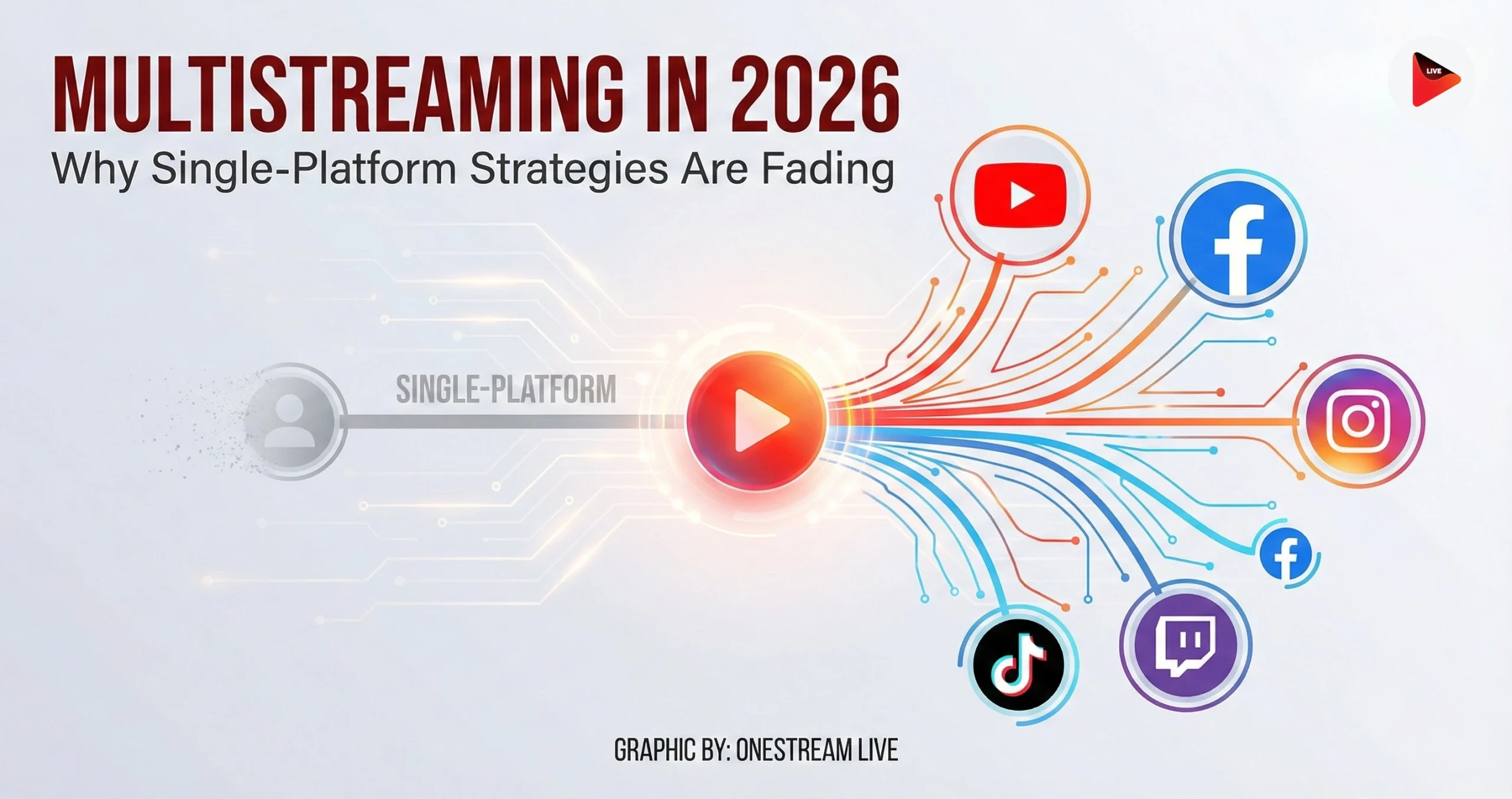
Multistream from your browser to every platform your audience loves, and that too, simultaneously. Web studios often have built-in multistreaming, meaning with one click, you can go live on YouTube, Facebook, Twitch, LinkedIn, Twitter, and more at the same time.
For example, OneStream Live allows broadcasting to over 45+ social platforms at once. All the routing happens in the cloud, so your internet uplink isn’t bogged down by multiple streams. You reach a far bigger audience without any extra effort or strain on your local network.
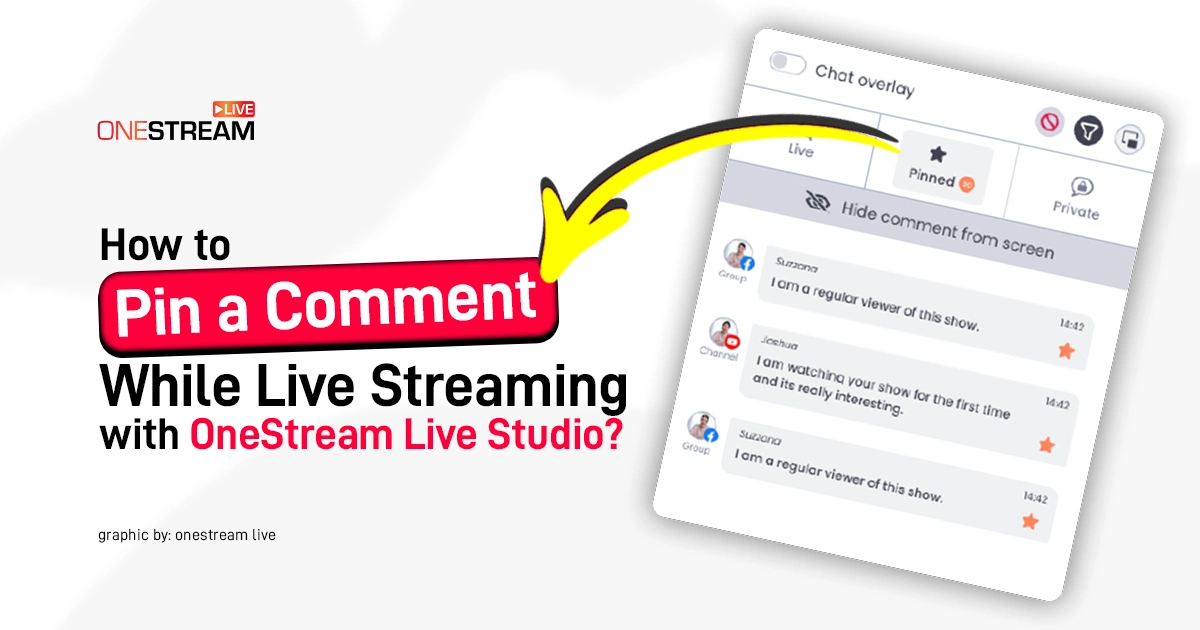
Pro Tip: A good browser studio will also unify your chat so that you can see comments from multiple platforms on one screen, like OneStream Live’s Unified Chat. Multistreaming used to require tricky setups or third-party plugins, but now it’s a built-in feature of the best web studios.
Go Live with “No Download Streaming Software”
Speed is the name of the game. With no-download streaming software, you can go from zero to live in 60 seconds flat. There’s no bulky program to install, no drivers to update, and no tedious setup wizards. The absence of setup friction means you’re more likely to actually go live when inspiration strikes, instead of procrastinating.
Here’s a little scenario: Let’s say you usually stream with a desktop app that takes a few minutes to launch and configure. By the time you’ve set up your scenes, your audience might already be distracted elsewhere.
But if you use a web-based studio, you could literally start a broadcast during a coffee break. One creator described their experience of using OneStream Live:

The point is, the “go live” button is always right there in your browser, no matter where you are. This nimble setup also makes it feasible to do more frequent streams (since the effort per stream is so low) and to respond quickly if news breaks or you want to connect with your community spontaneously.
Top Features to Look for in a Browser Studio
Not all browser streaming platforms are created equal. As this approach surges in popularity, a few key features separate the true web-based streaming software from the mediocre ones. If you’re shopping around for a no-download streaming solution, here are the top features to put on your checklist:
1. Custom Branding Tools
The best browser studios let you brand your stream to the hilt, so you don’t look like every other creator with a webcam. Branding includes overlays, lower-third tickers, logos, custom backgrounds, and even on-screen countdown timers. These elements give your broadcast a polished, TV-quality feel.
For example, OneStream Live’s Studio mode includes rich branding options. You can upload your own overlays, add your logo to the corner, and style the entire layout to match your vibe.
All of it is done through a simple interface, usually with drag-and-drop or one-click toggles. There’s no need to fuss with Photoshop or edit scenes manually as you would in OBS; the browser studio handles it gracefully with templates and real-time preview. Before you go live, you can make your stream look uniquely “you” with just a few clicks.
2. Cloud Recording & Storage
One huge advantage of a cloud-based studio is automatic recording of your live sessions. Every time you go live, a cloud recording is saved on the platform’s servers (often with options for separate audio tracks for each guest, etc.). This is a lifesaver for repurposing content.
You can download the recording afterward in full quality and trim out highlights for YouTube, TikTok, Instagram, or whatever platform you want. Since it’s stored online, you’re not chewing up your hard drive space with hour-long raw video files and you can access the footage from anywhere.
Many top browser platforms also let you record without actually going live, which is great for creating content in advance. In short, look for online streaming software that offers built-in recording (in high quality) and a library of your past streams.
It’s evidence of a platform that understands a creator’s real workflow: you shouldn’t have to hit five different tools to record, stream, download, and edit as it can all start in one place.
3. Integrated Media and Screen Sharing
Don’t underestimate the basics. Any good browser studio will let you share your screen (to show slides or demos, or to react to content) and play media clips during your stream. These features should be easy to use and not require any extra extensions.
For instance, you might want to roll a pre-recorded intro video or share a snippet of a YouTube video during a live commentary and quality platforms will have a “share video” or “media source” option built right in.
Also, check if the platform supports things like background music or sound effects libraries for a nice touch. The goal is to have a one-stop studio where all your production elements (camera feeds, guest feeds, screen share, video clips, audio, etc.) can be managed cohesively in the browser.
The Elephant in the Room: OBS vs. Browser Streaming
It’s time to address the elephant in the room: OBS Studio. Any conversation about live streaming inevitably brings up OBS, the open-source giant that’s been around forever. OBS is powerful and there is no doubt about it. It’s the toolkit of choice for many pro streamers, especially gamers, because of its deep customization.
1. When to Use OBS Studio
If you’re chasing granular control and you know your way around bitrate settings and plugin folders, OBS Studio might be your thing.
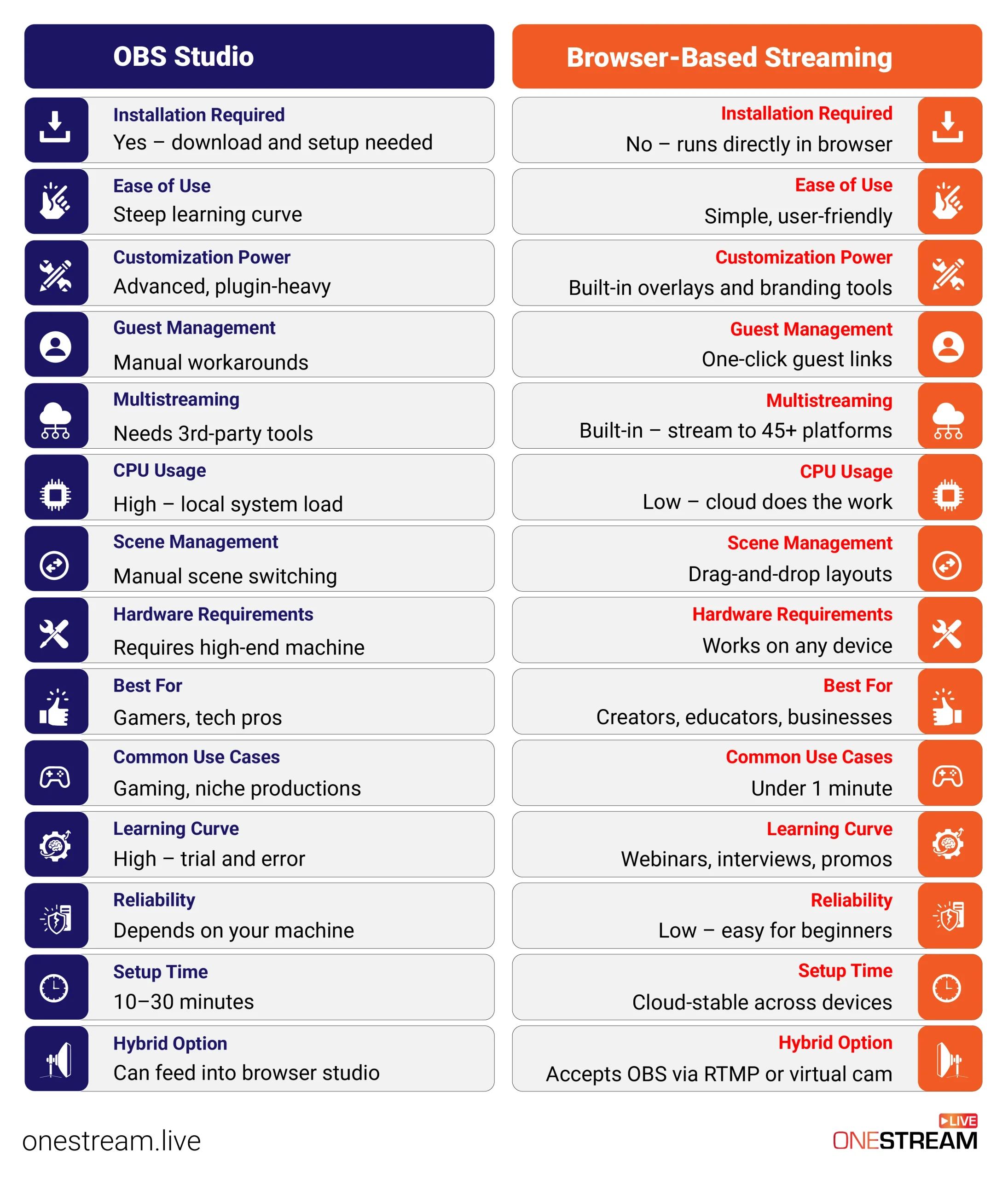
- Installation Required: OBS demands a full desktop download and setup — not ideal if you want no download streaming software.
- Ease of Use: It’s not for beginners. Expect a steep learning curve before you go live.
- Customization Power: Offers deep customization through plugins and manual scene building — great for tech-savvy users.
- Guest Management: No native guest feature. You’ll need external tools or virtual audio routing just to bring a friend on screen.
- Multistreaming: Requires 3rd-party plugins or services to multistream from OBS, which means more setup and cost.
- CPU Usage: OBS is notorious for hogging your machine’s power — expect fan noise, lag, and high CPU usage.
- Scene Management: Scene switching is fully manual and often time-consuming unless pre-scripted.
- Hardware Requirements: Needs a high-performance rig. Forget streaming on a Chromebook or mobile setup.
- Best For: Pro gamers, tech-heavy productions, or those producing custom-coded multi-camera broadcasts.
- Common Use Cases: Game streaming, live esports, or productions with niche workflows and overlays.
- Learning Curve: You’ll be reading docs and testing settings — not plug-and-play.
- Reliability: Performance varies based on your local hardware and network.
- Setup Time: Expect 10–30 minutes or more before you’re even ready to hit “Start Streaming.”
- Hybrid Option: Some use OBS as a virtual cam to feed into browser studios — but again, that’s more tech to manage.
2. When to Use Browser-Based Streaming Software (Like OneStream Studio)
If you want fast, flexible, and pro-quality results without wrestling with downloads or settings, this is your lane.
- Installation Required: None. It’s no download streaming software — just log into your browser and go live.
- Ease of Use: Built for creators, not coders. Launch your web-based live streaming studio in seconds.
- Customization Power: Comes with built-in overlays, banners, tickers, and branding tools. No plugins needed.
- Guest Management: Invite guests with one click. They join via browser — no tech headaches, no installs.
- Multistreaming: Native support to multistream from browser to 45+ platforms like YouTube, Twitch, LinkedIn, and more.
- CPU Usage: Cloud streaming studio does all the rendering and processing. Your system stays cool and quiet.
- Scene Management: Drag-and-drop layouts and pre-built templates mean you’re production-ready in seconds.
- Hardware Requirements: Works on old laptops, Chromebooks, even mobile devices. True online streaming software.
- Best For: Content creators, marketers, educators, podcasters, and event hosts.
- Common Use Cases: Webinars, interviews, product launches, branded lives, social content creation.
- Learning Curve: Virtually none. It’s intuitive enough for first-timers, but powerful enough for pros.
- Reliability: Cloud-based performance stays consistent no matter your hardware.
- Setup Time: Under 1 minute. Go live while your coffee’s still hot.
- Hybrid Option: Want to mix both? Use OBS as an RTMP feed or virtual cam inside the browser studio.
OneStream Live Studio: The Ultimate Browser-Based Solution
Let’s talk about OneStream Live Studio and why it earns a strong recommendation in the browser-based streaming arena. Full disclosure: I’m the lead tech columnist for OneStream Live, so of course I’m a fan – but that fanhood is earned by what the team has built.
OneStream Live isn’t just another StreamYard alternative; it’s a platform that brings a unique two-in-one punch to content creators: real-time live streaming and pre-recorded streaming in one place.
What does that mean in practice?
- You can host a live show with guests, overlays, and live chat interaction or stream a pre-recorded video as if it’s live – all from the same dashboard.
- In fact, you can blend the two: for example, roll a pre-recorded segment during your live show seamlessly. This hybrid capability is a game-changer for creators who want flexibility.
One user noted on G2 that OneStream Live solved their consistency problem:
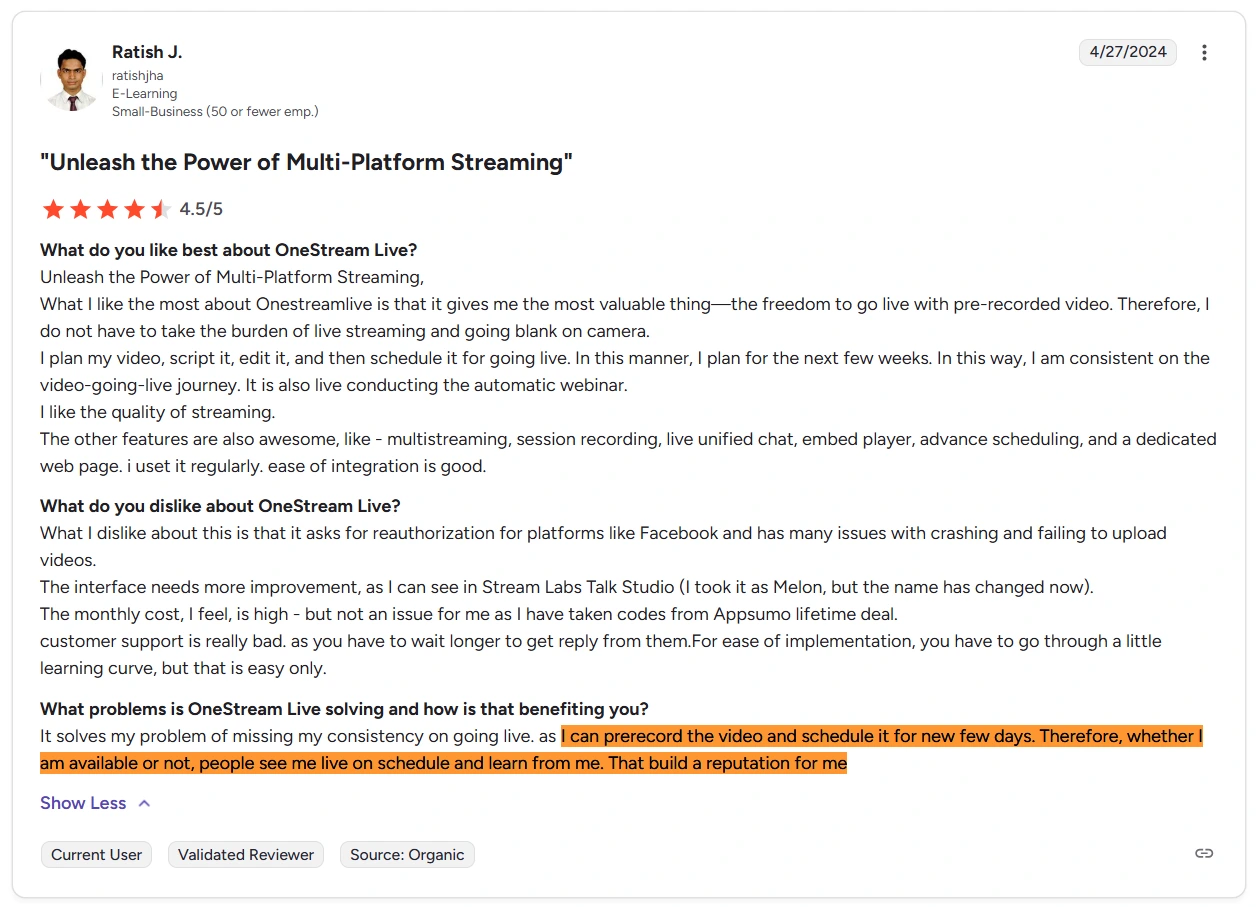
That’s a powerful advantage by essentially being in two places at once or ensuring your live stream channel doesn’t go dark just because you need a day off.
The OneStream Live Studio provides a full-fledged live production suite in your browser. You get all the goodies we’ve been talking about: multistreaming to 45+ platforms (yes, including obscure ones and custom RTMP links), crisp Full HD streaming from any device, and a robust set of branding tools (overlays, logos, background music, you name it).
The guest invite system is as easy as sending a link, and I’ve personally run panel interviews where guests joined via OneStream Live in two clicks. The platform handles up to 14 on-screen participants, and you can even highlight comments from viewers on the stream, which is fantastic for engagement during Q&As.
Let’s talk reliability and quality. Because OneStream Live is cloud-based, streams are generally very stable, and I don’t have to stress about my local internet upload handling 5 different platform outputs.
OneStream Live’s servers do that heavy lifting, which means I stream once to OneStream Live, and they distribute to, say, YouTube, Facebook, LinkedIn, and Twitter simultaneously.
From a viewer’s perspective, it’s flawless; from my perspective, it’s easy and safe. If one destination fails or has an issue, my stream stays live on the others. And OneStream Live even provides adaptive bitrate streaming in its embedded player to ensure viewers get a smooth experience when their connection is shaky.
A few standout features of OneStream Live Studio worth mentioning:
- Unified Chat – aggregate all platform chats in one window, as noted, so you can read and respond to everyone without missing a beat.
- Cloud storage for your videos – your recordings and even uploaded pre-recorded videos are stored, so you can reuse them anytime.
- Team collaboration – you can have team members manage streams, which is great for organizations.
- Teleprompter – you can read and present your scripts confidently with a live teleprompter on screen.
- Portrait Streaming – switch your live stream camera setup to Portrait Mode with just a click. This feature is ideal for platforms like Instagram and TikTok that favor vertical content.
- Multicamera support – live stream with up to 4 camera angles at the same time.
- RTMP ingestion – you can also integrate an RTMP feed into the Studio and then multistream it.
- Media Sharing – incorporate external media, like videos, images, presentations, etc., into your live stream. Similarly, you can also share your screen.
- OneStream Live Studio Browser Extension – available for Chrome, Edge, Firefox, and Brave, the Studio Extension allows you to host or join live Studio sessions directly from your browser.
Don’t just take my word for it. OneStream Live has garnered praise from creators and businesses alike. It currently holds a 4.6 out of 5 stars rating on G2 Crowd, with users particularly highlighting its ease of use and reliable performance.
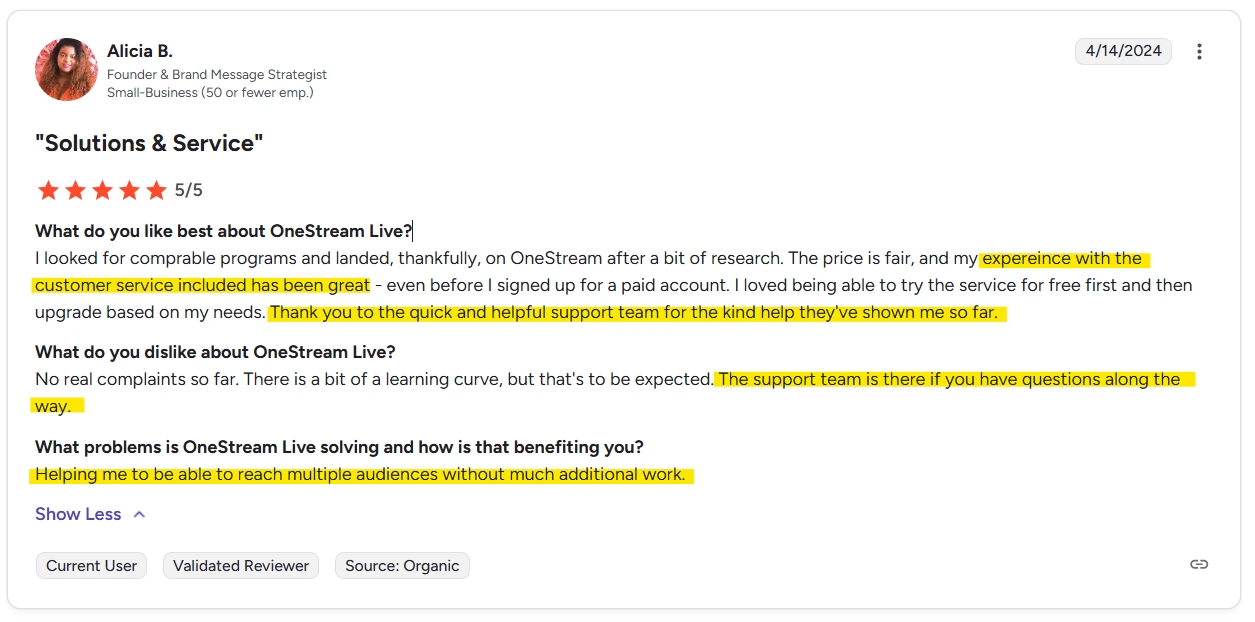
Many folks discover OneStream Live when searching for an easier alternative to OBS or complex multistream setups and end up staying because “it just works.” User feedback often mentions the stellar customer support and the rapid development of new features, which are important trust signals when you’re picking a platform to rely on for your content.
At the end of the day, OneStream Live Studio encapsulates what this “no-download” revolution is about: empowering creators to produce, schedule, and broadcast content without technical barriers. It treats the browser as a one-stop control room for all your live and pre-recorded streaming needs.
If you’re looking to embrace browser-based streaming fully, OneStream Live is absolutely worth a try – it’s the solution I confidently recommend as the best browser based streaming software heading into 2026.
Frequently Asked Questions (FAQs)
OneStream Live currently leads the market as the best browser based streaming software due to its unified “Live Studio,” ability to stream pre-recorded videos, and seamless multistreaming to 45+ platforms without requiring high-end hardware.
For most creators, browser live streaming is superior because it relies on cloud processing rather than your local CPU. This prevents computer lag and allows you to go live online from older laptops or even tablets without heavy software downloads.
Google Chrome and Microsoft Edge are currently tied as the best browser for streaming. Both utilize the latest WebRTC technology to ensure low latency and high-definition video stability when using web based streaming software.
Yes. Advanced stream browser tools like OneStream Live allow you to broadcast to YouTube, Facebook, Twitch, and LinkedIn simultaneously. You handle one video feed in your browser, and the cloud servers distribute it everywhere else.
A live clip browser feature lets you play pre-recorded video segments during a real-time broadcast. In OneStream Live’s studio, you simply upload your media files beforehand and click “play” to insert seamless intros, outros, or commercials while you are live.
OneStream Live is a cloud-based live streaming solution to create, schedule, and multistream professional-looking live streams across 45+ social media platforms and the web simultaneously. For content-related queries and feedback, write to us at [email protected]. You’re also welcome to Write for Us!