Most streamers treat the end of a broadcast as the finish line. The stream ends, the chat empties, and the recording sits in a folder until somebody gets around to cutting it. By then the moment has passed, which is why knowing how to clip streams matters as much as the broadcast itself.
The better habit is to plan the aftermath before you go live. One two-hour stream can feed a week of short clips, a recap card, a schedule reminder and a highlight reel, as long as you’ve decided what those pieces look like in advance. Here’s a practical way to set that up.
Key Takeaways:
- Plan your clips before you go live, so you're not scrolling through hours of footage looking for the good bit.
- Turn on DVR before every YouTube stream, because YouTube won't let anyone clip a live stream without it.
- Mark moments while you're live with /marker on Twitch or Insert stream marker on YouTube to find them in seconds later.
- Keep clips under 30 seconds with a line of on-screen context, so new viewers understand them without seeing the stream.
- Spread clips across the week instead of posting them all at once, so each one gets its own moment in your followers' feeds.

Why the Recording is Only Half the Job
Your live audience is one slice of the people you can reach. Pew Research Center's 2025 survey of 5,022 U.S. adults found that 84% use YouTube, about half use Instagram, and 37% use TikTok. TikTok was at 21% in 2021. Most of those people will never catch your stream live, but plenty of them will watch a 30-second clip in their feed.
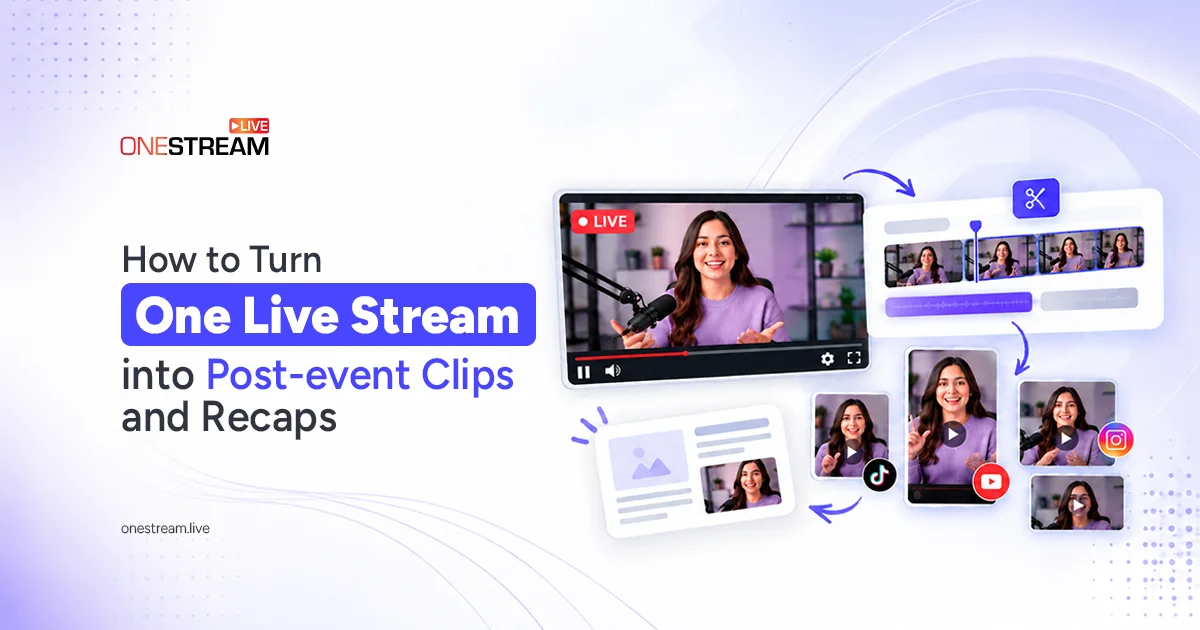
So the stream is raw material. The job afterward is to clip your stream into pieces that make sense on each platform, and to do that without spending your whole Monday in an editor.
Decide What You’ll Publish Before You Go Live
The usual mistake is deciding what to clip after the fact. You scroll through two hours of footage, can’t remember where the good bit was, and give up. Write the list first.
A reasonable set for one broadcast
- Two or three vertical clips, each built around one moment.
- One recap card with the date, the headline result and a link to the full replay.
- One teaser for the next stream, posted the day before.
- A weekly reel of your best stream highlights, assembled from the top clips.
Flag the moments while you’re live. A sticky note on your monitor, a timestamp in a doc, a chat command your moderator uses. It takes seconds and saves an hour later.
How to Clip Streams With the Tools You Already Have
Before you buy anything, use what's free. Both big platforms have built-in clipping, and each has quirks worth knowing.
How to Clip a YouTube Live Stream
On YouTube, a clip can run from 5 to 60 seconds, and the creator who owns the source video can convert the whole clip into a Short. There’s one catch that trips people up: YouTube says you can’t create clips from a live stream without DVR, or from a stream longer than the DVR window. If you forget to enable DVR, you’ll have to wait until the stream ends and the replay is posted.
How to Clip Twitch Streams
Twitch takes a different route. Since 2024 it has automatically generated a portrait version of every clip that you or your viewers create, and you can adjust the layout from the Clips Manager. Twitch also reported that 80% of clips are made by viewers and 70% of those get shared. That’s a useful reminder that your audience is already clipping you. You’re just deciding how good the result looks.
If your stream goes out to several platforms at once, each one will hand you a slightly different clip format. That’s fine for a rough cut. It’s less fine when you want every clip to carry the same title style, the same logo position and the same end card.
Pro Tips
Where Manual Editing Falls Apart
Cutting a single clip yourself is easy. Cutting twelve a week, each with a title, a caption, a lower third and a branded end card, is where people burn out.
It's repetitive work. The structure is identical every time, and only the text and the footage change. Anything that repetitive can be handled by a template.
Broadcast studios work this way already: build the graphic package once, then feed in new names and numbers. Streamers can do the same with a small set of reusable templates, such as a recap card, a clip frame and a teaser.
If you've read the guide on building cleaner live stream graphics, you already have the visual rules. Templates are what turn those rules into something you can reuse without opening a design tool every time.
Automating the Repeat Renders
Once you have templates, the next question is how to fill them in. You can do it one at a time in an editor, which is fine for one or two. For anything larger, it's worth a look at how a video editing API handles it. You build a template in After Effects and mark the layers that change, such as the title, the guest's name or the clip footage. Then you send a request with the new values. Plainly renders your After Effects template on its own cloud servers, so nothing renders on your computer, and you get back a link to the finished video. Because it's your original template doing the rendering, the output matches what you designed.
For a streamer, the useful parts are the boring ones. A batch endpoint lets you request many videos in one call, so a full week of recap cards becomes a single job. Webhooks tell your own scripts when a render is done, so you can post it without checking. Draft renders let you test a layout before you commit to a full-quality file. Outputs come as MP4, MOV or GIF, from Full HD up to 4K, so one template can serve a YouTube upload and a short looping GIF for chat.
You don't need any of this to start. Plenty of streamers never get past the built-in clip tools, and that's a fine place to stay. Automation starts to earn its keep once you're producing the same kind of video again and again.
A Simple Weekly Routine for Clipping Your Streams
Here’s how the pieces fit together for a streamer who goes live three times a week.
1
Before the stream, pick which templates you’ll use and prepare the title text for the teaser. On Twitch, make sure “Store past broadcasts” is turned on.
2
During the stream, mark the moments worth clipping. On Twitch, type /marker in your chat (add a short note, like /marker clutch final round). On YouTube, use Insert stream marker in YouTube Studio.
3
Within an hour of ending, jump to your markers, pull the clips with the platform’s own tools, and trim each to 30 seconds or less.
4
Drop the clip footage and text into your templates, either in an editor or through an automated render.
5
Post the clips across the next few days rather than all at once. A clip that goes out on Wednesday still reminds people about Sunday’s stream.
6
On Friday, stitch the best three into a single highlight reel and link the full replay. Twitch deletes past broadcasts after 7 to 60 days depending on your account, so export the replay to YouTube first if you want that link to keep working.
The spacing matters more than people think. Posting a week’s worth of clips in one afternoon floods your followers, then leaves the account quiet for days. Spreading them out gives each one its own moment.
Keep Your Stream Clips Clear and Useful
Short clips only work if they stand alone. Someone who has never seen your stream should understand what’s happening within the first few seconds, so add a line of context as on-screen text. A caption that says “Final round, down by two” does more than a clever title.
Check the audio too. Live streams often have game sound, voice chat and music layered together, and a clip that sounded fine live can turn muddy when it’s cut out of context. Licensed music is the other trap: a song playing in the background can get a clip muted or removed once it’s reposted, so trim around it or keep copyrighted tracks off your stream. If you want to sort the audio out at the source, the piece on testing webcams and microphones before going live covers the basics.
Finally, watch what people actually do with the clips. Note which ones get shared, which get skipped, and how long viewers stay. After a month you’ll have a clear picture of which templates are worth keeping and which ones you can quietly retire.
Wrapping Up
Learning how to clip streams isn’t really about the clip button. It’s about deciding what you’ll publish before you go live, marking the moments as they happen, and having templates ready so the cutting takes minutes instead of a whole afternoon.
Start small. Use the free tools Twitch, YouTube and OBS already give you, post a few clips across the week, and pay attention to what people share. Once you’re making the same kind of video again and again, templates and automated renders start saving real time.
And when your stream highlights are ready, give them a bigger stage. With OneStream Live, you can stream live or schedule pre-recorded videos to 45+ platforms at once, so every clip, recap and highlight reel reaches your whole audience, not just one corner of it.
Frequently Asked Questions
How long should a stream clip be?
Both YouTube and Twitch allow clips of 5 to 60 seconds. Most streamers aim for under 30, since a shorter clip is easier to watch to the end.
Can I clip my own stream while I’m live?
Yes. On Twitch, add the “Clip That” Quick Action in Stream Manager and you can clip without leaving your dashboard. In OBS, the Replay Buffer saves the last 30–60 seconds as a file whenever you press your hotkey.
Why can’t I clip a YouTube live stream?
Usually it’s DVR. YouTube won’t allow clips from live streams without DVR, streams over 8 hours long, or premieres while they’re still live. Turn DVR on before you go live.
Can viewers clip my stream, and can I stop them?
Yes, viewers can clip by default, and on Twitch they make most clips. On YouTube, you can untick “Allow viewers to clip my content” or add specific users to your hidden list. On Twitch, clip permissions live in Creator Dashboard under Settings → Stream.
What if I stream to more than one platform?
Use one set of templates for all of them, so your stream highlights look like they come from the same channel no matter where they appear.
OneStream Live is a cloud-based live streaming solution to create, schedule, and multistream professional-looking live streams across 45+ social media platforms and the web simultaneously. For content-related queries and feedback, write to us at [email protected]. If you have a story to share about your live streaming experience with OneStream Live, we would be glad to feature it. You're also welcome to Write for Us!