
Building your empire on someone else’s lawn. Twitch takes a cut, YouTube hides your links, and social algorithms differ by the hour. When it comes to live streaming, what’s the first thing that comes to your mind? Twitch? Kick? YouTube Live? Undoubtedly, these are good options, but setting up a live stream on your website comes with its own advantages.
Businesses and marketers increasingly use this approach to host private webinars, product launches, and events, while bloggers use it to garner traffic onto their websites. Not only is this development helping industries and businesses to conduct their events in a standardized manner, but it also provides a possibility to institutions and corporations that like to dodge social media platforms and live stream events directly on the website, broadcasting privately using a livestream embed code.
Considering these factors, OneStream Live provided streamers an easy way to stream on their websites. With this level of control, you don’t have to worry about YouTube suggesting your viewers your competitive video or Twitch pinching other streamers’ content during your broadcast.
- Embedding live streams on your website boosts engagement and keeps your audience in your ecosystem.
- OneStream Live’s Embed Player offers flexible customization, branding, and seamless setup.
- AI-powered captions, real-time translation, and multi-guest streaming enhance modern viewer experience.
- Adaptive bitrate streaming and bandwidth management ensure smooth playback for all viewers.
- Hosted Live Pages let you stream professionally even without creating your own website.
Best Ways to Embed Live Streaming Video on Your Website
Before we dive into tips, let’s explore two main methods you can use to go live on your website. If you’re using OneStream Live, you can also watch the video tutorial below to get things done.
The “Forever” Method (Universal Player)
This method is preferred for daily streamers. It’s a permanent embed code; paste it once, and your HTML video stream will automatically display every time you go live.
Best for:
- Creators who want a permanent livestream on their site
- Podcasts, weekly shows or any other kind of recurring broadcasts
- Anyone who wants to avoid the hassle of replacing embed codes for each broadcast
The “One-Off” Method (Unique Player)
This method is used for ticketed/private events, which basically expires after the show concludes.
Best for:
- Paid workshops, webinars or classes
- Exclusive events where access must be controlled
- Creators who want separate player pages for each show
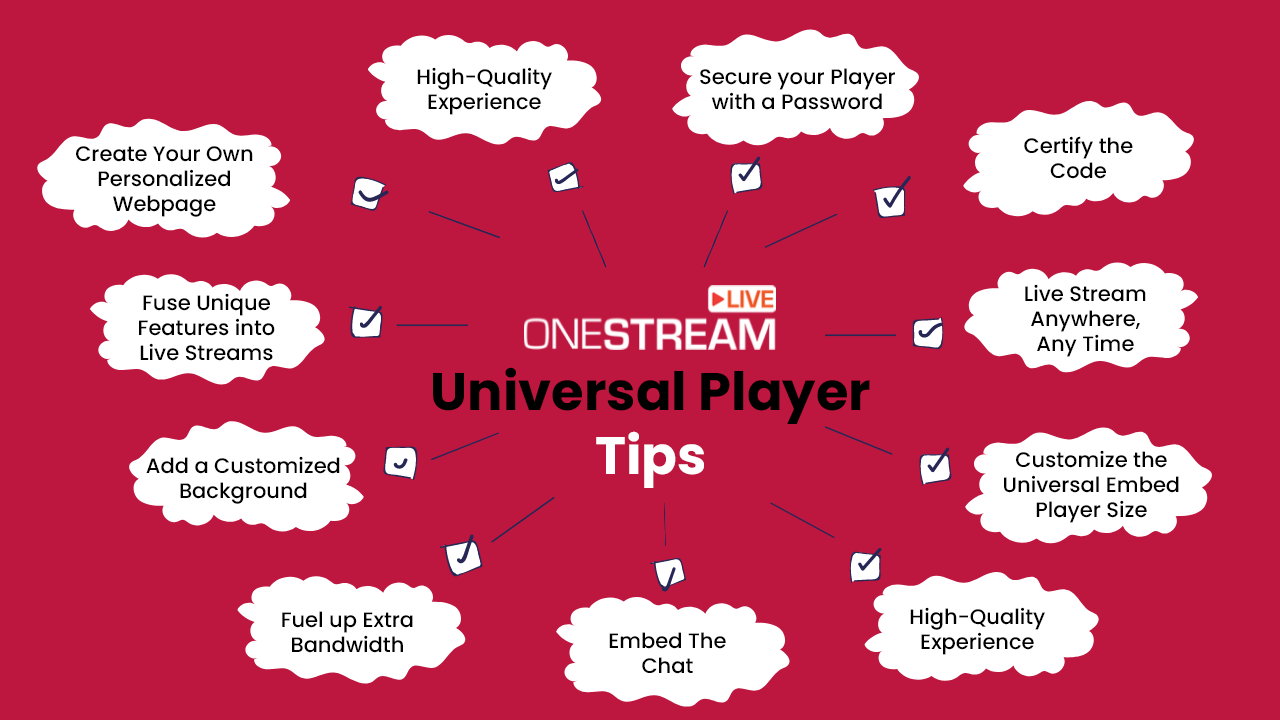
9 Tips to Stream on Your Website Using Embed Player
Since you’ll be streaming on your website, make sure everything is perfect for a good viewing experience. Here are some useful tips to make the experience smoother for your audience.
1. Fuse Unique Features into Live Streams
Make certain that you are utilizing all the available features:
- Create a Playlist: If you are live streaming pre-recorded videos back to back, instead of scheduling them one after another, create a Playlist using the Playlist feature and live stream seamlessly.
- Add a logo/overlay: Do not forget to add the logo of your company or brand in the video to grab the attention of the viewers and to create a strong first impression.
- AI Auto Subtitles/Captions: Captions in the stream add more value to your content. In 2025, you can use AI captioning tools to automatically add subtitles and save you hours of work.
- Real-Time Translation: You may have people joining your stream from different corners of the world. Real-time translation ensures every viewer is able to connect with the stream.
- Go Pro with RTMP Source Streaming: If you want studio-level control like custom graphics or layouts, then connecting OBS or Zoom through RTMP is the way to go. With this, you can embed RTMP stream in a web page and broadcast directly from your encoder into your website’s player. Here’s how to do it:
- Open your external software like OBS, Zoom, or Streamlabs.
- Copy the RTMP URL and Stream Key from OneStream Live.
- Paste them into your encoder’s settings.
- Your encoder will now send the stream to OneStream Live, and OneStream Live will push it into the embedded player.
- Invite Guests: Using the OneStream Studio, you can invite multiple guests to the meeting.
- Brand your Streams: OneStream Live has added multiple virtual backgrounds, Overlays, Visual Effects, tickers, and countdown timer for its users. Use customized branding tools to enhance your live streams.
- Record Live Sessions: Record your live sessions and repurpose them to leverage awareness.
2. Add a Customized Background
Give your live stream a professional touch by using a Customized Player Background. It is a branding opportunity that you must not neglect and use to strengthen your message to your viewers. With OneStream Live you have countless options to personalize your background. This ensures your branding remains consistent no matter where you go live. Here are some background customization options available in OneStream Live:
- Virtual Backgrounds
- Custom Background Colors
- Color Filters
- Smart Zoom
- Background Blur
3. Secure your Embed Player with a Password
If you are hosting a private event or organizing an educational program, you would want to keep it secured. You can restrict the Embed Player to only authorized attendees by protecting your Embed Player with a Username and Password. By employing this feature you will have complete control over your viewers and anyone without the set credentials will not be allowed to view the live stream. If needed, you can change the Username and Password at any time.
4. Customize the Embed Player Size
The width and height of the Embed Player define the size of your player. The size of the player should look perfect on your webpage. You can resize it as per your requirements but make sure that it is displayed with the correct dimensions that give the viewers a quality experience.
5. Fuel up Extra Bandwidth
Live streaming demands an ample supply of Bandwidth. It is a fundamental element that must not be forgotten. Don’t let success crash your stream and go live with OneStream Live. We offer generous bandwidth caps (up to 2.5TB on professional plans) so you can scale without sweating the meter.
Pro Tip: Calculate the required amount of bandwidth before your event by using any Bandwidth Calculator.
6. High-Quality Experience
Bear in mind that not a living soul wants to watch a video of poor quality. Therefore, enable Adaptive Bitrate Streaming. It is a technique used to adjust the quality of the stream as per the viewer’s bandwidth. With adaptive bitrate streaming, the viewers will always receive the best video quality that their current internet connection speed can support.
7. Certify the Code
As long as you’re using Universal Player embed, you don’t have to certify the code because it stays the same. However, if you choose a unique player, the code is generated fresh for each event. So, make sure to copy the new code whenever you’re hosting a new private event.
8. Embed Chat
Not only can you embed a live stream using OneStream Live, but you can embed the chat as well. This allows you to communicate with your viewers smoothly. From the Embed Settings, you can enable or disable the option to copy the chat with the embed player. Once you have turned on the settings, copy the newly generated code and embed it on the website.
9. Don’t Forget Video Schema
You need to keep your stream SEO-friendly to attract more people, and that’s why you can’t forget video schema. It’s done by adding “VideoObject” in the embed code. This displays a “Live” badge in search results which shows the users your content is currently live.
Create Your Own Personalized Webpage
If you are looking to live stream on website but creating and hosting the website is restricting you then you have an amazing intuitive embed player feature – Hosted Live Pages. Hosted Live Pages allows you to easily create a personalized live video site hosted by OneStream Live and live stream on it, without having to worry about purchasing any external hosting. It provides in-built templates, customizable layouts, fonts, colors, backgrounds, a Custom Domain, an option to add a call to action button, Live Chat, and a lot more.
FAQs
An embed player lets you host live streams directly on your own website using an embed code.
Yes, with an embed player you can stream directly on your site without relying on external hosting.
Yes, an embed player works on all devices, including smartphones and tablets.
YouTube optimizes both versions automatically, ensuring high-quality playback across all supported devices.
Yes, you can customize the embed player with your own logo, colors, and branding elements.
OneStream Live is a cloud-based live streaming solution to create, schedule, and multistream professional-looking live streams across 45+ social media platforms and the web simultaneously. For content-related queries and feedback, write to us at [email protected]. You’re also welcome to Write for Us!
![How to Record Google Meet [2026 Complete Guide]](https://onestream.live/wp-content/uploads/2026/02/how-to-record-google-meet-sessions-for-live-streaming.webp)