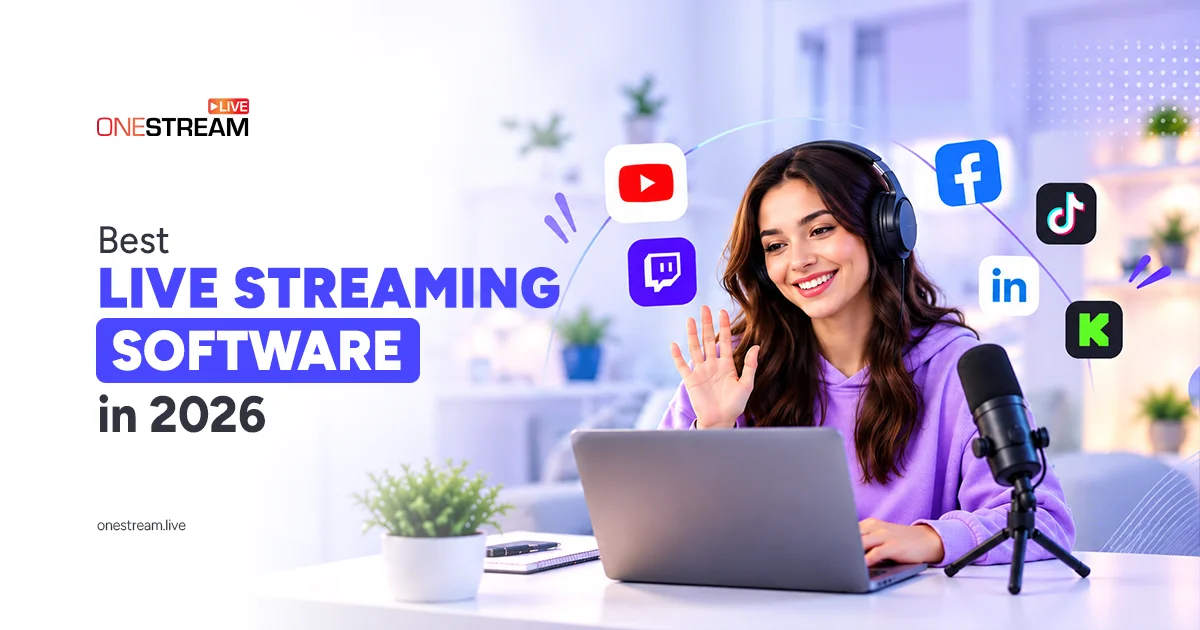
Ever opened streaming software for the first time and stared at scenes, sources, bitrates, and stream keys with no clue where to start? It's enough to make you close the app and try again next week. The good news: the best live streaming software for beginners hides most of that complexity, and some of these tools don't even need a download.
This guide keeps it simple. You'll get quick picks by need, three questions that point you to the right tool, short reviews of 7 options, and a checklist for your first stream.
Key Takeaways:
- The best live streaming software for beginners is the one that fits your computer, your platform, and your budget, not the one with the most features.
- Browser studios like OneStream Live Studio and StreamYard require no download, making them the fastest route to your first stream.
- OBS Studio is completely free with no watermark, but its manual scenes, sources, and encoder settings make it the hardest tool on this list to learn.
- Meld Studio is a free desktop app for Windows and Mac that includes multistreaming at no cost.
- A clear microphone, simple lighting, and a stable upload connection improve a beginner stream more than an expensive camera does.

How to Choose Streaming Software for Beginners
Choosing streaming software for beginners comes down to three questions: what computer you have, where you'll stream, and whether you'll bring guests. Answer them in order, and your shortlist shrinks to one or two tools.
1. What Computer Are You Using?
If you're using a laptop or a Chromebook, pick cloud software. If you have a gaming PC or a recent Mac, desktop software works well.
Here's why it matters. Cloud streaming software does the heavy lifting on remote servers, so your computer just sends one video. Desktop software encodes everything on your own CPU and GPU, which gives you more control but needs stronger hardware.
| Your device | Go with | Try |
|---|---|---|
| Chromebook or a laptop | Cloud software | OneStream Live Studio, StreamYard |
| Gaming PC | Desktop app | Streamlabs Desktop, OBS Studio, Meld Studio |
| Recent Mac | Desktop app or cloud | Ecamm Live, Meld Studio, any browser studio |
| Xbox or PlayStation | Cloud console capture | Lightstream |
| Phone only | Mobile app | OneStream Live app, Streamlabs app |
2. Where Will You Stream?
Match the tool to your main platform, then add multistreaming if your audience is spread across several.
| Main platform | Start with | Why it fits |
|---|---|---|
| YouTube | OneStream Live Studio, StreamYard, OBS Studio | All go live on YouTube; browser studios let you sign in instead of pasting stream keys |
| Twitch | Streamlabs Desktop, OBS Studio, Meld Studio | Strong game capture, alerts, and overlays |
| Kick | Meld Studio, OBS Studio | Meld supports Kick natively; OBS uses Kick's stream URL and key |
| Several at once | OneStream Live Studio, Meld Studio | Free multistreaming built in |
3. Will You Stream Solo or With Guests?
Streaming solo? Any tool on this list works. Bringing guests? Pick a browser studio, because guests join from a link with nothing to install.
OneStream Live Studio and StreamYard handle guests natively. Streamlabs allows one guest on its free plan. Ecamm needs its Pro plan for interviews. OBS and Meld need a separate app to bring remote guests on screen.
Got your answers? Now meet the tools.
The 7 Best Live Streaming Software Picks for Beginners in 2026
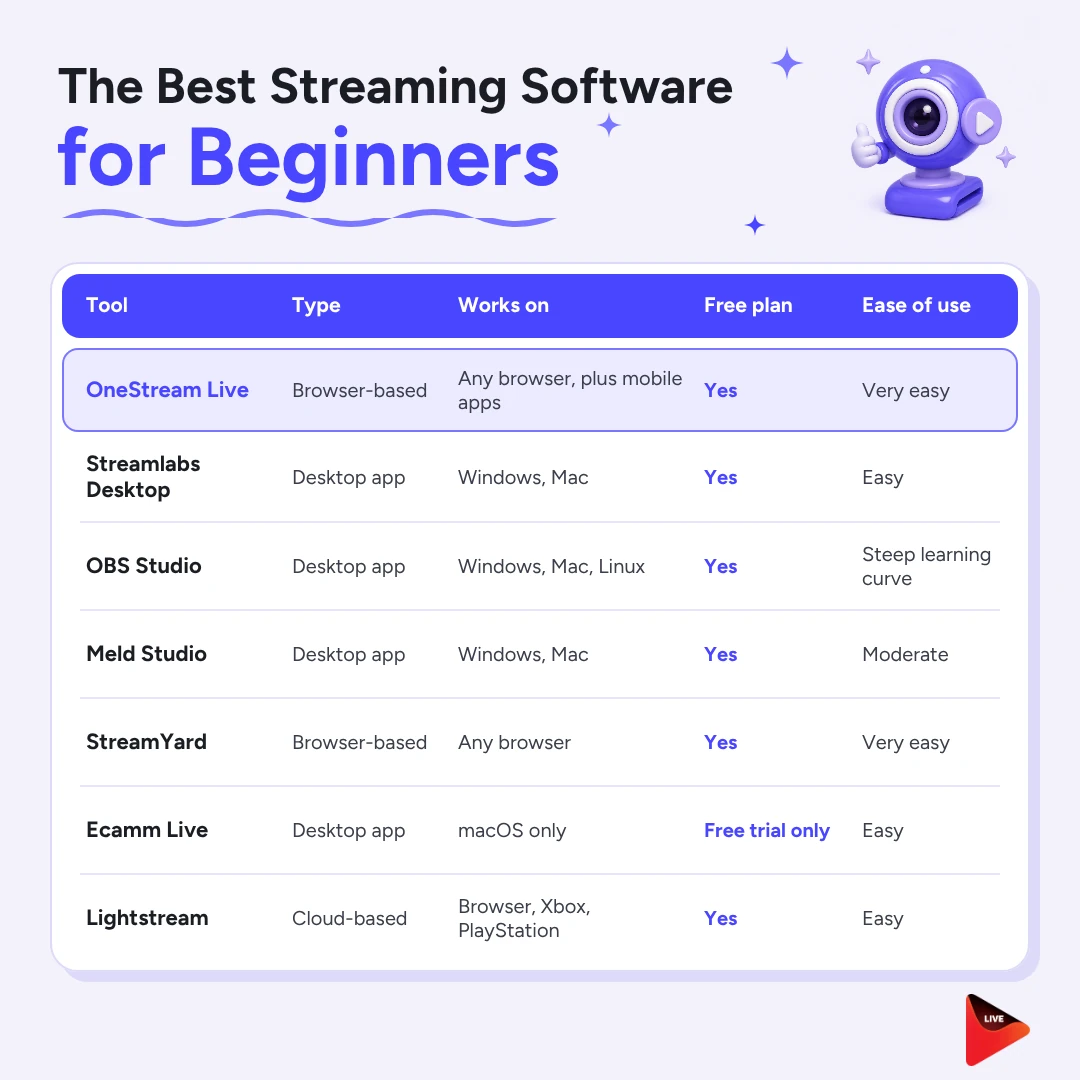
The 7 best live streaming software picks for beginners in 2026 are OneStream Live Studio, Streamlabs Desktop, OBS Studio, Meld Studio, StreamYard, Ecamm Live, and Lightstream. We judged each one on setup time, learning curve, free plan, hardware needs, and platform support.
1. OneStream Live
OneStream Live is a cloud streaming platform. You can go live from its browser Studio, connect OBS or another encoder, or schedule a pre-recorded video to air as a live stream. It also lets you embed live streams on your website, or create a customized webpage for live streaming your events. Every broadcast reaches 45+ platforms and the web at the same time.
- Best for: beginners who want to reach several platforms
- Works on: any browser, Chromebooks, iOS, and Android
- Free plan: yes
- Paid plans: from $15 a month
Three ways to go live:
- Live Studio: go live from a browser tab, with nothing to install
- Encoder Stream: connect OBS, Zoom, or Streamlabs
- Prerecorded Streaming: air a prerecorded video as a live stream
Why beginners like it:
- Up to 16 guests in a session
- Scenes, overlays, virtual backgrounds, and a teleprompter built in
- Instant Studio gives you one link that never expires
- Live sales to sell online while streaming with QR codes
- Unified chat that brings all comments in one place
- Multistreaming on more than 45+ social platforms at once
- 24/7 live streaming on YouTube
- Queue multiple videos to play back to back with playlist streaming or loop a video
- Backup stream key that saves your stream if the connection drops
- Screen share and media share feasibility when live streaming with live studio
- Record and download your live sessions easily
2. Streamlabs
Streamlabs Desktop builds on OBS and adds the extras new gamers want on day one. Themes, alerts, and chat widgets drop straight into your scene.
- Best for: new PC gamers
- Works on: Windows and Mac
- Free plan: yes
- Paid plan: Ultra, $27 a month or $179 a year
Why beginners like it:
- Ready made themes, alerts, and widgets
- Streams to two platforms free: one horizontal, one vertical
- One free guest through Collab Cam
3. OBS
OBS Studio is free, open source, and the tool you'll see in countless streaming tutorials. You get complete control, but you set up everything yourself.
- Best for: beginners who like to tinker
- Works on: Windows, Mac, and Linux
- Free plan: completely free, no watermark
- Paid plan: none
Why beginners like it:
- Free forever
- Full control over every scene and source
- Huge community and endless tutorials
- Plugin manager built in since version 32
4. Meld Studio
Meld Studio is a newer desktop app with a clean layout and free multistreaming built in. Think of it as a friendlier OBS.
- Best for: free desktop streaming to several platforms
- Works on: Windows and Mac
- Free plan: yes
- Paid plan: optional Spark AI tools, from $20 a month
Why beginners like it:
- Free multistreaming to Twitch, YouTube, Kick, and TikTok
- Built in multichat for your platforms
- Imports your OBS scenes in one click
- Green screen and other effects included
5. StreamYard
StreamYard keeps things simple for talk shows. Guests click an invite link, wait backstage, and appear on screen when you bring them in.
- Best for: interviews, podcasts, and panels
- Works on: any modern browser
- Free plan: yes, 1 destination with the StreamYard logo
- Paid plan: Starts from 44.99$ a month
Why beginners like it:
- Guests join from a link, no download
- Up to 6 people on screen, even free
- Clean layouts and on screen comments
6. Ecamm Live
Ecamm Live is a native Mac app that makes camera switching, overlays, and screen sharing feel effortless. If you want the best live streaming software for Mac and don't mind a subscription, it's the premium pick to try.
- Best for: Mac creators
- Works on: macOS only
- Free plan: no, but there's a free trial of 14 days
- Paid plans: from $16 a month, billed yearly
Why beginners like it:
- Polished and easy on a Mac
- Multistreaming to up to 10 platforms
- Saves a recording of every stream
7. Lightstream
Lightstream lets you stream from an Xbox or PlayStation with overlays and alerts, with no capture card or gaming PC needed. Twitch even recommended it when it retired Twitch Studio.
- Best for: Xbox and PlayStation streamers
- Works on: browser, PS4, PS5, Xbox One, and Xbox Series X and S
- Free plan: yes, 720p with the Lightstream logo
- Paid plan: Premium, $12 a month ($9 billed yearly)
Why beginners like it:
- No capture card or gaming PC needed
- Streams to up to 5 platforms, even free
- Barely uses your computer
Is There Free Live Streaming Software for Beginners?
Yes, and you can start without paying a cent. OBS Studio and Meld Studio cost nothing and add no watermark. Streamlabs Desktop is free, with paid extras on its Ultra plan. Browser studios such as OneStream Live Studio and StreamYard have free plans too, but those plans cap things like resolution, destinations, or branding.
Here's what each free plan really gives you:
| Tool | What's free | The catch |
|---|---|---|
| OneStream Live | 2 destinations, 3 scheduled events, 4 studio guests | 720p cap; more destinations on paid plans |
| OBS Studio | The full app | Steepest learning curve; multistreaming needs extra tools |
| Meld Studio | The full app | No Linux; guests need another app |
| Streamlabs Desktop | Core app, themes, alerts, one guest | Full multistreaming and premium themes need Ultra |
| StreamYard | Browser studio with guests | StreamYard branding; no multistreaming |
| Lightstream | Cloud studio and console capture | Lightstream branding |
Pro Tips
Pick Your First Streaming Software and Go Live
The best live streaming software for beginners is the one that gets you live this week, not the one with the longest feature list. Answer the three questions, pick one tool from the quick picks, and run a private test tonight.
If you want zero setup, start in your browser. If you want zero cost and don't mind learning, start with OBS Studio or Meld Studio. Either way, schedule your first real stream for this weekend. One live hour teaches you more than ten tutorials.
Frequently Asked Questions
What streaming software do most streamers use?
Popular live streaming software includes OBS Studio, Streamlabs Desktop, and browser-based streaming studios like OneStream Live.
What is the easiest streaming software for beginners?
Browser based streaming software is a convenient starting point for beginners because it does not require installing desktop software. OneStream Live lets you set up your camera and microphone, invite guests, customize your stream with overlays, and go live from your browser. You can also multistream to supported platforms without running separate broadcasts for each one. If you prefer a downloadable application with gaming focused alerts and themes, Streamlabs Desktop is another option.
Is OBS good for beginners?
OBS Studio is free, open source, and packed with customization options, but beginners may need time to learn its scenes, sources, audio controls, and encoding settings. If you want a simpler browser based workflow, OneStream Live lets you create live shows without configuring a desktop broadcasting application. You can add guests, customize your layout, and stream to multiple destinations. OBS remains useful for creators who want more hands on control over their production setup.
What is the best live streaming software for Mac?
The right live streaming software for Mac depends on your workflow. OBS Studio offers free, advanced production controls, while Streamlabs Desktop provides additional creator tools. Ecamm Live is another option for Mac users who want a dedicated production studio. If you prefer not to install software, OneStream Live runs in a supported web browser on your Mac. You can host live shows, bring guests on screen, and multistream to supported social platforms from one browser based workspace.
Can I live stream from a Chromebook?
Yes! You can live stream from a Chromebook using browser based streaming software. Since OBS Studio does not have a native ChromeOS version, a web based studio is a practical alternative. OneStream Live lets you stream through your browser, use your webcam and microphone, share your screen, add guests, and broadcast to multiple supported platforms without installing traditional desktop streaming software.
OneStream Live is a cloud-based live streaming solution to create, schedule, and multistream professional-looking live streams across 45+ social media platforms and the web simultaneously. For content-related queries and feedback, write to us at [email protected]. If you have a story to share about your live streaming experience with OneStream Live, we would be glad to feature it. You’re also welcome to Write for Us!