How to Start Vimeo Streaming in 2026 (Step-by-Step Guide)

Vimeo is a platform designed to support both viewers and creators. Viewers get an ad-free environment that keeps the focus on the content, while creators get advanced customization options to control how their videos and live streams appear. Because of this balance, many professionals use Vimeo streaming to host webinars, online events, training sessions, and branded broadcasts.

In this guide, you will learn how to start Vimeo streaming step by step, how it works, and how you can stream to Vimeo and multiple platforms at the same time.

In this Article:
Key Takeaways:
  • Vimeo Streaming offers a professional video streaming platform for webinars, training sessions, and live events.

  • Creators can start a Vimeo live stream in a few steps through the Vimeo dashboard and browser studio.

  • Vimeo allows full control over the player and branding, which helps creators present content professionally.

  • Creators can reach audiences on many platforms by using multistreaming tools like OneStream Live.
  • Vimeo also supports monetization, so creators can sell access to live events or offer paid video content.

Why Streamers Should Start Vimeo Streaming in 2026

Online video is already part of daily life, so the real challenge is not to create demand. The challenge is choosing a platform that gives you more control and a cleaner viewing experience. DataReportal says 94.6% of online adults watched some form of online video in the past 30 days, and 91.1% watched online video in the past 7 days.

Video is also now a normal part of business growth, creator marketing, education, and audience building. Wyzowl reports that 91% of businesses use video as a marketing tool in 2026, and 93% say video is an important part of their strategy. That tells new streamers one clear thing: audiences already trust video, and brands already invest in it.

Vimeo Streaming stands out because it is built for quality and control, not distraction. Vimeo says its platform is ad free and trusted by 287 million creatives, entrepreneurs, and businesses. That is a strong reason to choose it if you want a video streaming platform that feels professional and keeps viewers focused on your content.

Vimeo allows users to sell access to live events, offer paid subscriptions, or host premium content through its streaming tools. Many creators use Vimeo to run online workshops, training sessions, and private video memberships.

A simple social upload may get views, but Vimeo live streaming gives you stronger ownership over the viewer experience. Vimeo also highlights custom player control, high quality hosting, and branded streaming options for creators and businesses that want more than a basic public video page.

That makes it a smart video streaming solution for streamers who want stronger branding, professional video hosting, and full control over how their content appears to viewers.

Step-by-Step Process to Start Streaming on Vimeo

Starting Vimeo Streaming becomes easier when you follow the process in the right order. Vimeo lets you create a live streaming event, set up your broadcast, customize the player, and go live from one place.

The steps below show exactly how to start a Vimeo live stream as a beginner by using the browser based method.

Step 1: Log in to Vimeo and Create a Live Event

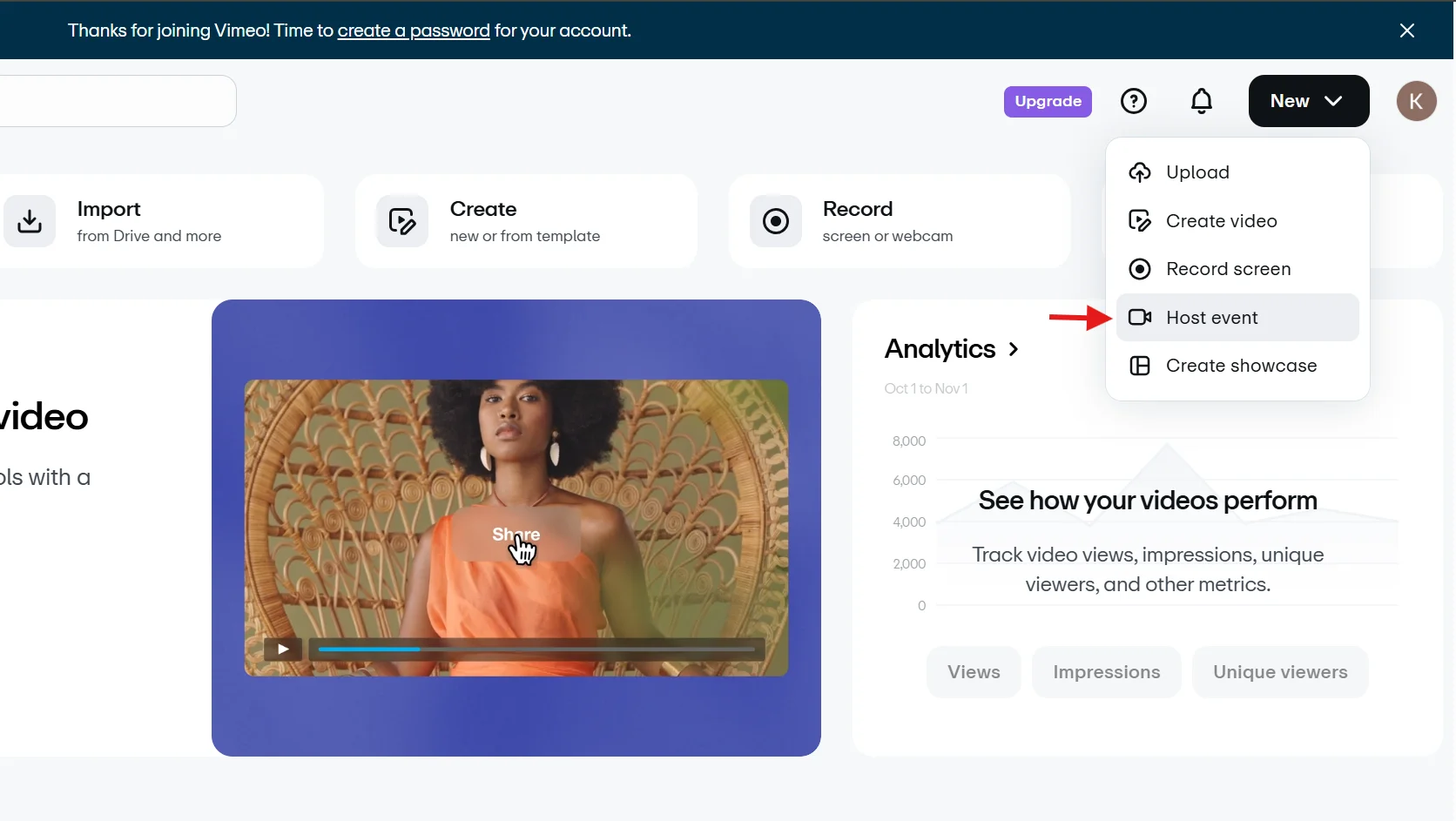
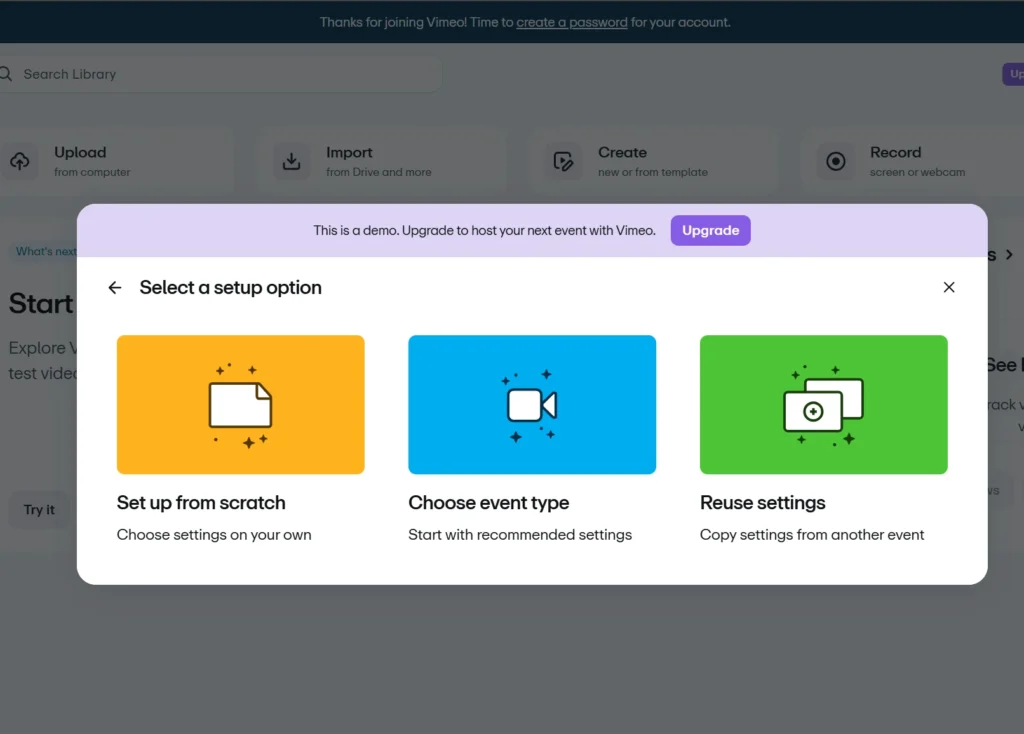
First, log in to your Vimeo account and go to your dashboard. Then click New and choose the Host Event shown in your account.

After selecting Host Event, Vimeo will show three setup options:

  • Set up from scratch
  • Choose event type
  • Reuse settings

For a first-time Vimeo live stream, select Choose event type.

How to Start Stream on Vimeo

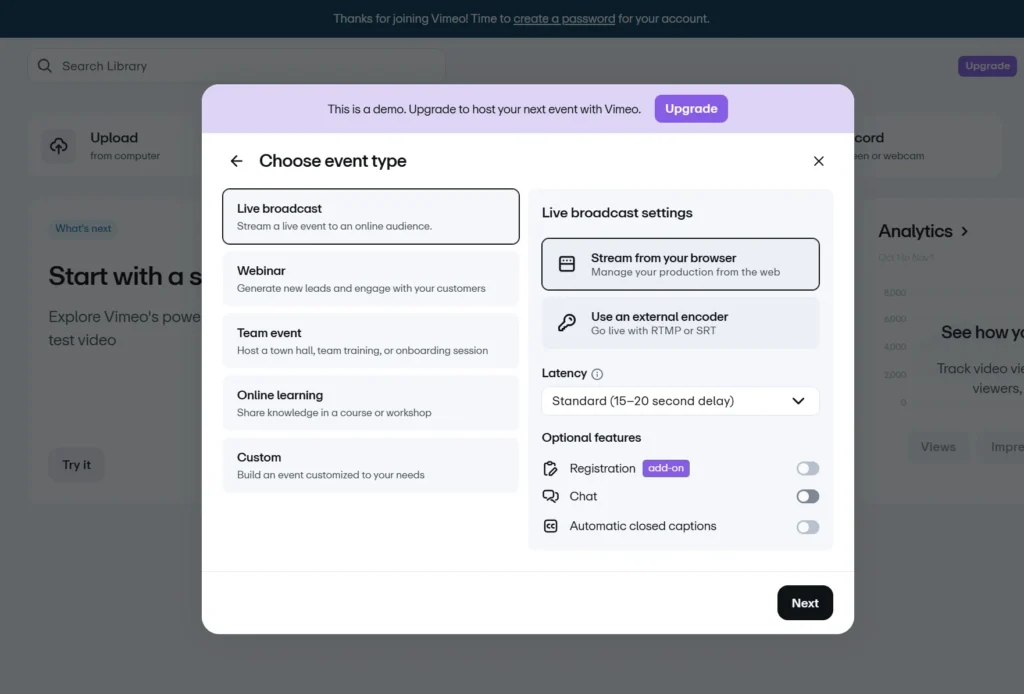
Step 2: Select the Live Broadcast Event Type

On the next screen you will see several event types such as:

  • Live broadcast
  • Webinar
  • Team event
  • Online learning
  • Custom

Select Live broadcast.

How to Start Vimeo Streaming Step 2

On the right side you will see the Live broadcast settings where Vimeo asks how you want to stream. For beginners choose Stream from your browser which opens the Vimeo production studio.

You will also see optional settings such as:

  • Latency
  • Chat
  • Registration
  • Automatic captions

You can leave these as default for your first Vimeo live streaming event.

After selecting Stream from your browser, click Next.

Step 3: Add Your Event Details

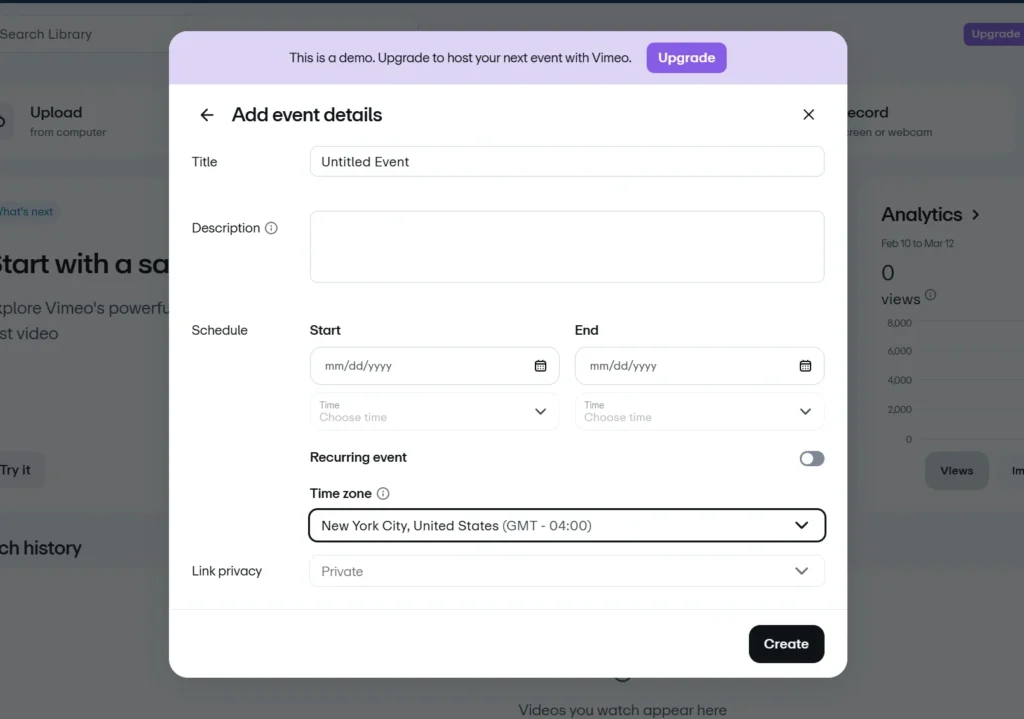
Now, Vimeo will open the Add event details window.

Here you need to fill in the main event information:

  • Title for your Vimeo stream
  • Description of the event
  • Start date and time
  • End date and time
  • Time zone
How to Start Vimeo Streaming Step 3

Add your event title, description, and schedule. This creates the main page for your Vimeo stream and prepares the base setup for the full broadcast. A clear title also helps viewers understand what your live streaming event will cover.

You can also enable Recurring event if you plan to run regular live streams.

After filling in the details, click Create.

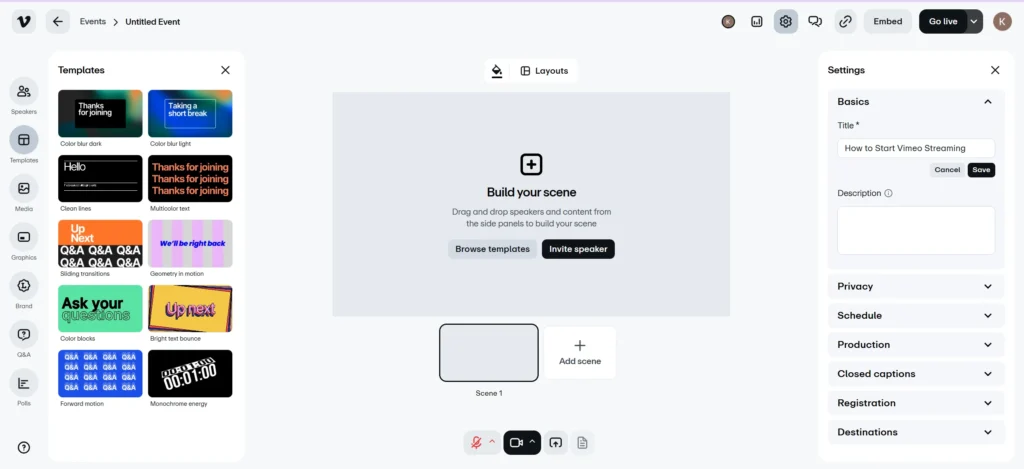
This will open your Vimeo live event dashboard and browser production studio.

Step 4: Set Up Your Stream Inside the Vimeo Studio

Once the studio opens, select your camera and microphone from the available devices. Check that your video frame and audio levels look correct before continuing.

Inside the studio you can also prepare your broadcast layout. You can add your camera feed, screen share, media files, or simple scenes such as an intro screen and closing screen.

This preparation step helps your Vimeo streaming setup look more organized before the live streaming event begins.

Step 5: Customize the Event and Embed the Stream if Needed

Before going live, you can open the event settings and customize the Vimeo player. Vimeo allows you to upload a thumbnail, add your logo, and adjust player colors.

If you want viewers to watch the broadcast on your own website, open the Embed section and copy the embed code. Then place the code on your website page where the event will appear.

This step turns Vimeo into a more flexible video streaming platform for hosting events on your own site.

Step 6: Start the Vimeo Live Stream

After your camera, layout, and event settings are ready, click Go Live inside the Vimeo studio.

Once you go live, your Vimeo live stream becomes visible to your audience, and the live streaming event begins. During the broadcast, keep an eye on the stream controls and connection status to maintain a smooth viewing experience.

Step 7: End the Stream and Save the Recording

When the event is finished, stop the stream from the Vimeo dashboard. Vimeo automatically saves the recording in your library so you can use it later as replay content.

This recording can later be shared, embedded, or reused as part of your video streaming service content strategy. Many creators reuse these recordings as long-term content after the live event ends.

You Can Also Use an External Encoder

If you want more advanced control, Vimeo also lets you stream with an external encoder such as OBS. That method is better for creators who want multiple cameras, overlays, or a more advanced setup. Still, for a first time user, the browser method is the clearest way to start Vimeo Streaming.

If you are still comparing platforms for live streaming, you can read our guide Vimeo Live vs YouTube Live: Which One Is the Best? to understand how both platforms differ.

How to Stream to Vimeo and Multiple Platforms at the Same Time

Many creators want their live video to reach audiences on different platforms at the same time. Instead of starting separate streams for every platform, you can use OneStream Live to distribute one broadcast to several destinations.

This method lets you send the same live video to Vimeo and other platforms simultaneously, which makes your live streaming for events much easier to manage.

Step 1: Create Your Live Event on Vimeo

Start by creating your Vimeo live streaming event the same way you normally would. Log in to your account, click New, and select Host Event.

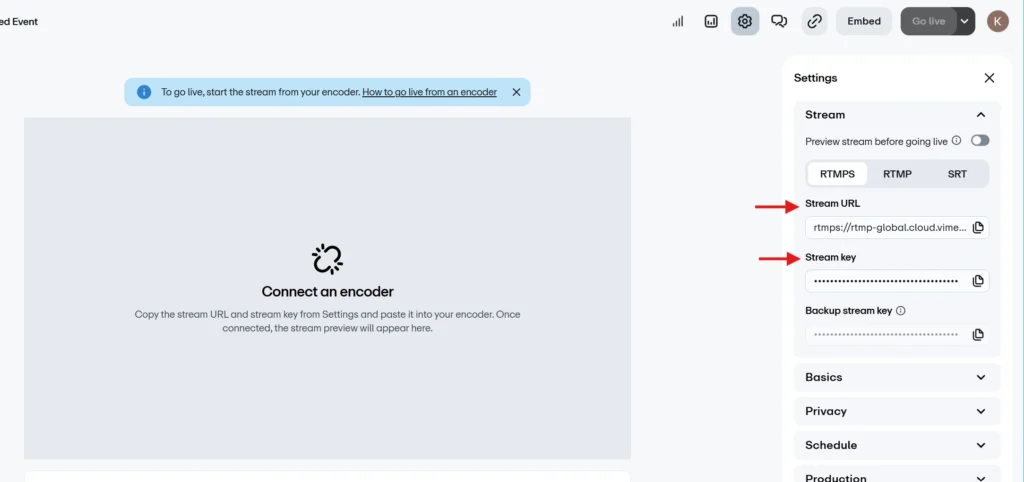
Choose Live broadcast and select Use an external encoder. Then click Create.

Vimeo will generate a Stream URL and Stream Key. These details allow an external platform or encoder to send video to your Vimeo live stream.

Step 2: Add Vimeo As a Destination in OneStream Live

Next, log in to the OneStream Live App, open your dashboard, and go to Add Social Platforms. Click Add Platform and select Vimeo.

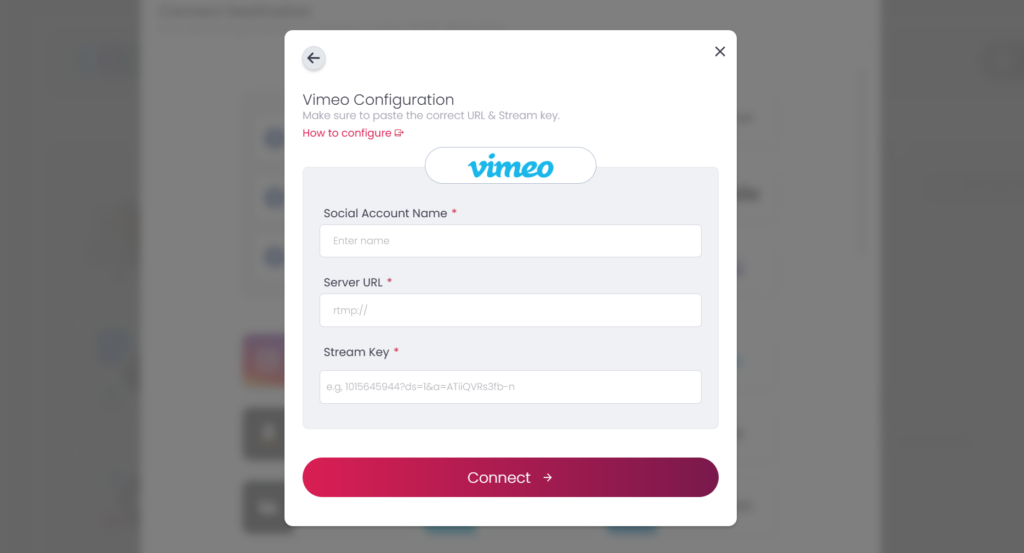
Paste the Stream URL and Stream Key from your Vimeo into the required fields and save the connection. Vimeo will now appear as one of your streaming destinations.

How to connect Vimeo with OneStream Live Step 2

In this setup, OneStream Live acts as the video source, while Vimeo receives the broadcast as a destination on its video streaming platform.

Step 3: Connect Additional Streaming Platforms

Now add the other platforms where you want the stream to appear. OneStream Live supports many destinations such as YouTube, Facebook, LinkedIn, Twitch, and other RTMP based services.

Once connected, the same live streaming event can be sent to all platforms at the same time.

Multistream on 45+ social platforms & the web

Step 4: Start the Broadcast

Start your stream from OneStream Live Studio or connect your broadcast using OBS or any other professional streaming software through RTMP.

Once the stream reaches OneStream Live, the platform will distribute it to Vimeo and all other selected platforms simultaneously. This method removes the need to run multiple streams from your computer and keeps the broadcast stable across different destinations.

Step 5: Monitor the Stream Performance

During the broadcast, monitor the stream performance inside the OneStream Live dashboard. This helps confirm that your stream is reaching every connected destination.

Streaming to Vimeo and multiple platforms at the same time helps expand your audience reach while keeping the process simple for creators and businesses that run live streaming events.

Best YouTube Live Alternatives for Professional Streaming

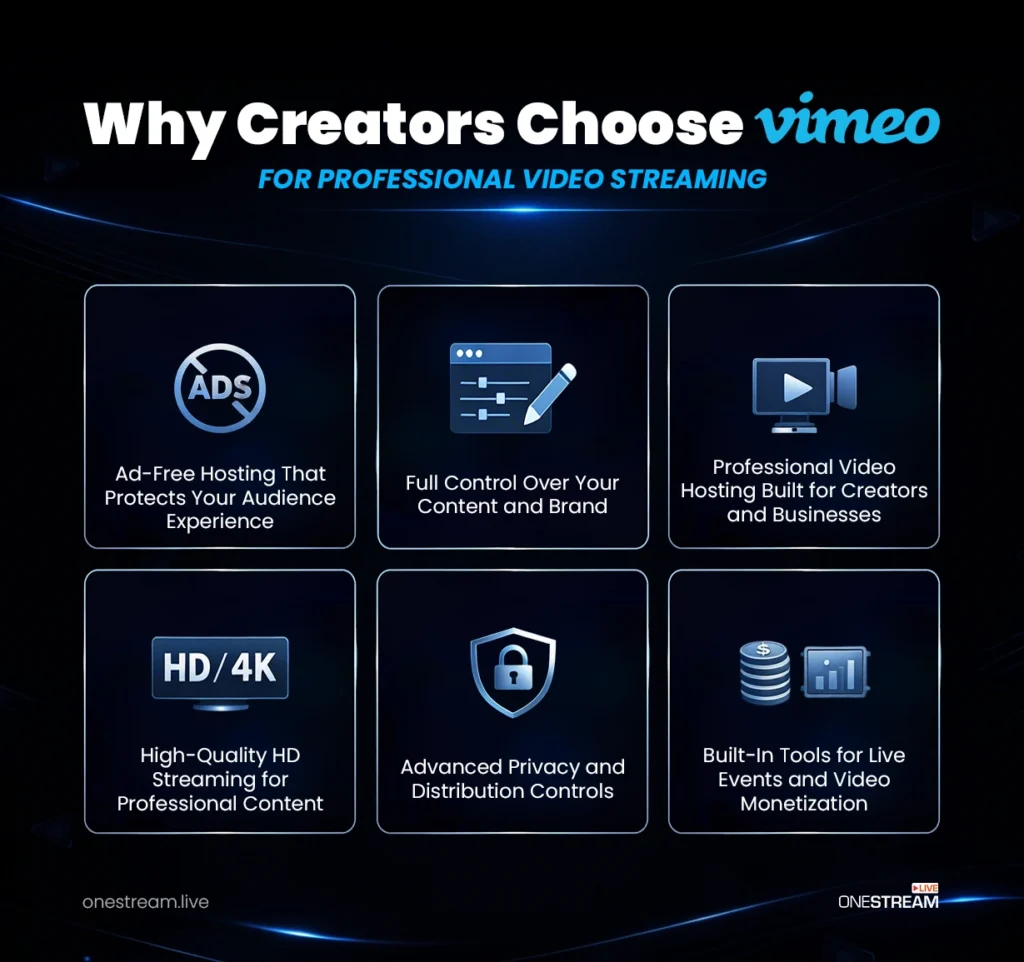
Why Creators Choose Vimeo for Professional Video Streaming

Vimeo has built a reputation as a reliable video streaming platform for creators, businesses, and educators who want more control over their content. Unlike social platforms that focus on discovery and ads, Vimeo focuses on quality, branding, and professional video delivery.

This is why many creators choose Vimeo Streaming when they want a more controlled and professional video streaming service.

Full Control Over Your Content and Brand

One of the main reasons creators choose Vimeo is the level of control it offers. The platform allows you to customize the video player, upload your logo, adjust colors, and manage how your content appears to viewers.

This control helps creators maintain a consistent brand identity while running a Vimeo live stream or hosting videos on their website.

Ad-Free Hosting That Protects Your Audience Experience

Unlike many free video platforms, Vimeo provides an ad-free viewing experience. This means viewers can watch your videos or a live streaming event without interruptions from third-party advertisements.

An ad-free environment keeps the audience focused on the content, which is important for businesses, educators, and professional creators.

Professional Video Hosting Built for Creators and Businesses

Vimeo is designed as a professional video streaming solution rather than a social media platform. It provides hosting tools, analytics, customization options, and video management features that support professional workflows.

These tools make Vimeo a reliable stream video provider for companies, marketing teams, and independent creators who rely on video as part of their content strategy.

High-Quality HD Streaming for Professional Content

Vimeo focuses on delivering high quality video playback. The platform supports HD streaming and adaptive playback so viewers can watch content smoothly across different devices and internet speeds.

This level of quality helps creators deliver a polished Vimeo stream that looks professional on websites, landing pages, and event platforms.

Advanced Privacy and Distribution Controls

Another major advantage of Vimeo Streaming is privacy control. Creators can restrict where videos can be embedded, protect content with passwords, or limit access to specific domains.

These options are valuable for training videos, internal presentations, paid content, and private live streaming for events.

Built-In Tools for Live Events and Video Monetization

Vimeo also offers tools that support vimeo live streaming, webinars, and online events. Creators can host a live stream on Vimeo, interact with audiences, and later turn recordings into on-demand content.

The platform also supports paid video models such as pay-per-view events, video rentals, and subscription streaming services for creators who want to earn from their content.

Final Thoughts

Vimeo streaming gives creators a structured way to run professional live broadcasts without depending entirely on social platforms. It allows streamers to host events, control how their video appears, and manage content through a dedicated video streaming platform.

Getting started becomes easier once you understand the setup process. You can create a live event, customize the player, and embed the stream on your website to run reliable live broadcasts.

Creators who want to reach audiences on multiple platforms can use OneStream Live to distribute the same broadcast across different destinations. This approach helps streamers keep a professional streaming setup while expanding their audience beyond a single platform.

FAQs About Vimeo Streaming

To start streaming on Vimeo, you need a Vimeo plan that supports live events, a camera and microphone, and a stable internet connection. You can go live through Vimeo’s browser studio, the Vimeo mobile app, or external software such as OBS or OneStream Live.
No. Vimeo does offer a Free plan, but live streaming is not available for going live on that plan. Vimeo’s live event feature requires an Advanced or Premium plan, or an Enterprise plan with Events enabled.

You can stream on Vimeo through its browser studio, or by using external software such as OBS, OneStream Live, or other RTMP-compatible encoders. Vimeo also supports live streaming through its mobile apps.

Yes. Vimeo allows creators to create and schedule live events in advance so viewers can access the event page before the broadcast starts.

Yes. Vimeo supports simulcasting to other destinations, and creators can also use a multistreaming service such as OneStream Live when they want to send the same broadcast to Vimeo and other platforms.

OneStream Live is a cloud-based live streaming solution to create, schedule, and multistream professional-looking live streams across 45+ social media platforms and the web simultaneously. For content-related queries and feedback, write to us at [email protected]. You’re also welcome to Write for Us!

Picture of Kalim
Kalim
Kalim is a Digital Content Writer at OneStream Live, dedicated to creating SEO-optimized content. When he's not writing, you can find him lost in his passion for music and singing.

Stay in the Loop

Subscribe to our Newsletter
subscribe
Want to expand your industry knowledge?
Learn & Grow With Us